Get a workspace and sign in
Request a workspace on the website, then sign in to your team's console with an email code or your Google, Slack, Feishu or Lark account.
Request a workspace#
- Open stevinhq.com/get-started.
- Fill in the request with your work email and complete the steps on the page.
- The Stevin team reviews the request. When it is approved, the applicant receives an email and becomes the Owner of the workspace.
Each team has its own workspace. Its data, integrations and settings belong to that workspace only.
Sign in to the console#
The console is the web interface of your workspace. To sign in:
- Open stevinhq.com/signin and enter your workspace address. It is in your approval or invitation email.
- Enter your work email and choose Continue.
- Enter the 6-digit code sent to that address. A code is valid for 10 minutes; you can ask for a new one after a short wait.
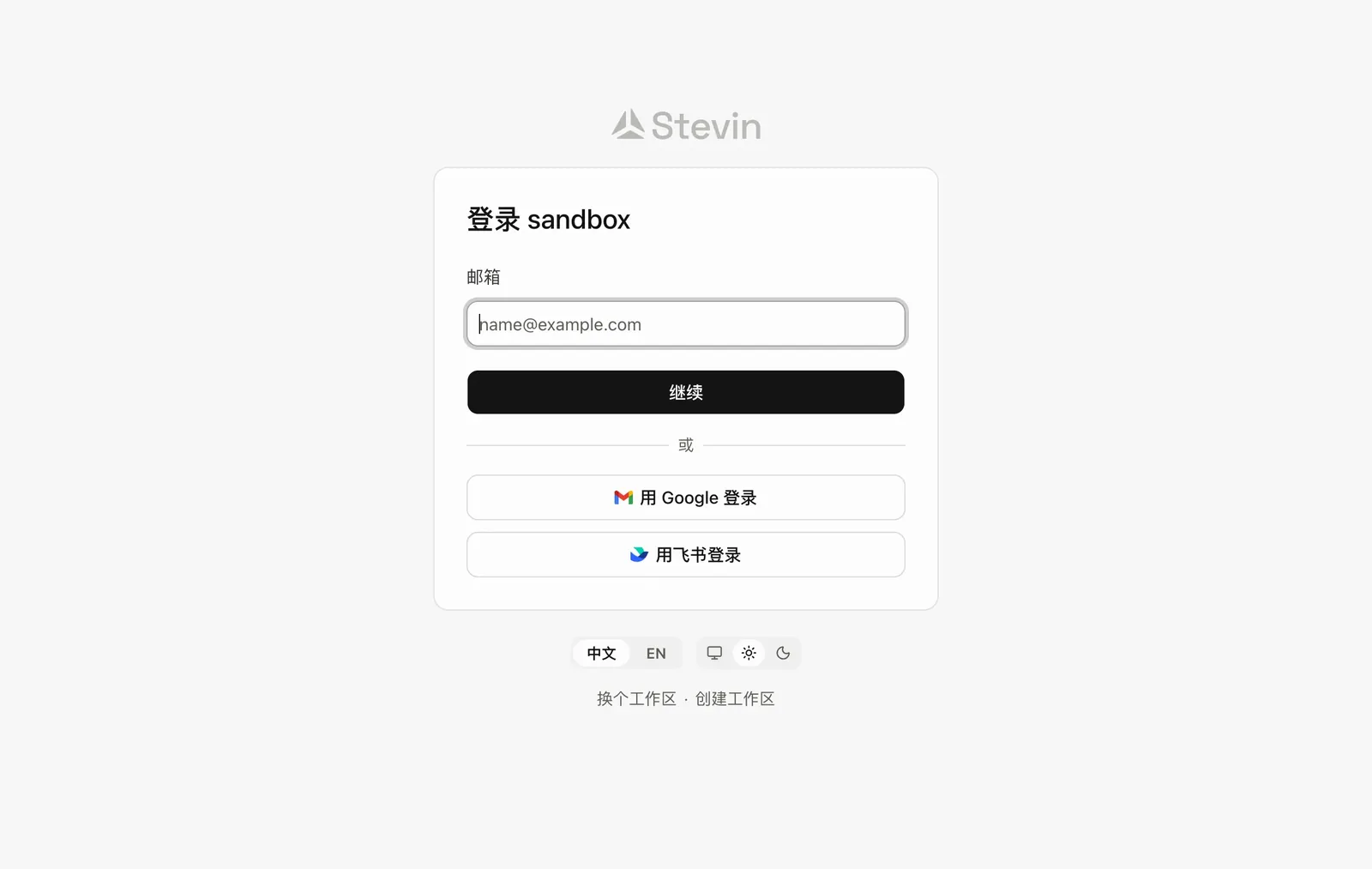
- Work emailEnter the address that was approved or invited.
- ContinueSends a 6-digit code to that address. The code is valid for 10 minutes.
- Sign in with an account you already haveGoogle, and the chat tool your workspace has connected, once that sign-in method is turned on.
- Language and appearanceSwitch the interface language, or choose system, light or dark.
Other ways to sign in#
| Method | When it is available |
|---|---|
| Email code | Always |
| Password | After you set one under Settings → Account. Changing it signs you out everywhere |
| When your Google account's email matches an account in the workspace | |
| Feishu or Lark | After an admin turns on sign-in on the Feishu or Lark integration. The first sign-in creates your account |
| Slack | After you link Slack once under Settings → Account. First sign in another way, then link it |
What the Owner does next#
- Connect your team's chat tool under Customize → Integrations. See Channels.
- Connect the business tools you want Stevin to use. See Integrations and MCP servers.
- Bring in your colleagues on the People page. See People and roles.
- Check that the default Permissions suit you. See Permissions.
The console shows a short Get started checklist until these are done.
How members join#
After an admin invites you, you receive an email. Sign in with the address that was invited: enter it on the sign-in page and use the code sent to it.
If the email does not arrive, ask an admin to choose Resend invitation on the People page, or request a code on the sign-in page with the invited address. If your workspace has turned on sign-in with Feishu or Lark, you can use that instead: the first sign-in creates your account, and no invitation is needed.
Sign-in problems#
See Cannot sign in.