Manage skills
Create, switch on, publish and roll back skills on the Customize page: team skills, your own skills, and members' skills.
Where skills are managed#
Open Customize → Skills in the console. For what a skill is and how to write a good one, see Skills.
The page has up to three lists:
| List | What is in it | Who sees it |
|---|---|---|
| Team | Skills every member's conversations use | Everyone who can see skills |
| Mine | Skills only your own conversations use | You |
| Members' own skills | Skills members wrote for themselves | Admins only, so they can publish a good one to the team |
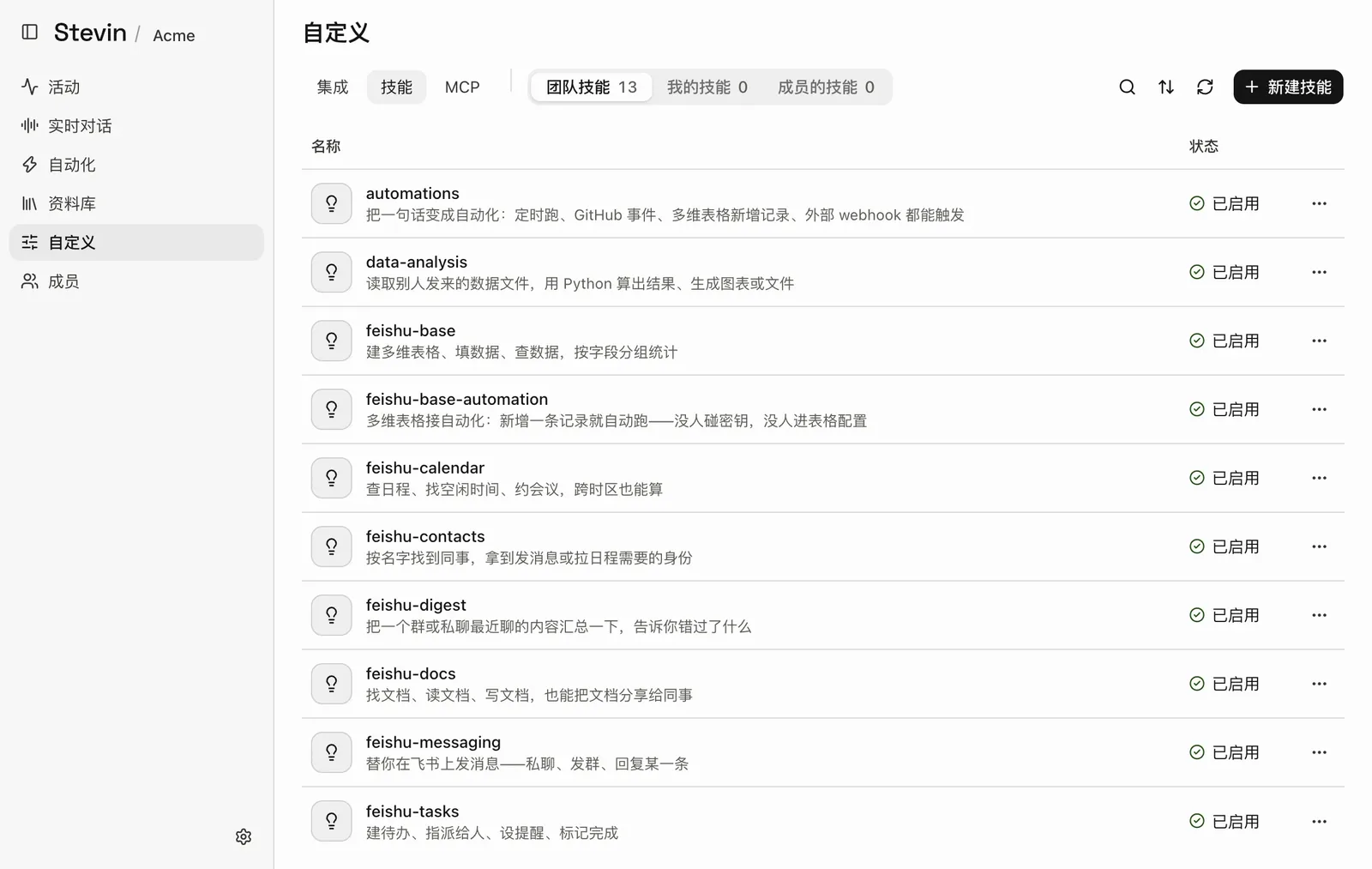
- Skills tabBetween Integrations and MCP.
- Team, Mine, Members' ownThe three lists, each with a count.
- New skillOpens the form to create a skill.
- A skillIts name and what it does. Select the row to open, edit or see revisions.
- StatusWhether the skill is switched on.
Create a skill#
- Choose New skill.
- Fill in the form:
| Field | What to enter |
|---|---|
| Name | Lowercase letters, digits and hyphens, such as weekly-report |
| What it does | The situations the skill applies to. Stevin decides from this when to use it |
| Full instructions | What Stevin reads when it uses the skill |
| Extra material | Optional files the instructions refer to. Stevin opens them only when it needs them |
- Choose whether it is a team skill. A skill that is not is yours alone until an admin publishes it to the team.
- Choose Save.
Switch a skill on or off#
Each skill has an on/off switch. A skill that is off keeps its content but is not used. Some skills are marked Required by an integration or by the product: only an admin can change them or switch them off.
Publish a member's skill to the team#
When a member's own skill has proved useful, an admin opens it and chooses Publish to team. From then on every member's conversations use it.
Revisions#
Every save creates a revision. Open a skill and choose Revisions to see every saved version, newest first. Choose Make active on an earlier one to go back to it.
If the active revision cannot be read, the page says so: make an earlier one active or edit it.
Delete a skill#
Choose Delete on the skill. Its revisions stay in the audit record.
Who can manage skills#
| Action | Owner | Admin | Member | Viewer |
|---|---|---|---|---|
| See the team's skills and their own | Yes | Yes | Yes | No |
| Create and edit their own skills | Yes | Yes | Yes | No |
| Create, edit and publish team skills | Yes | Yes | No | No |
These are the defaults; change them on the Permissions page.